Build Your First AI Agent with OpenClaw
Learn how to build your first AI agent from scratch using OpenClaw. Step-by-step tutorial for beginners with no prior experience.

Introduction
Welcome! In this tutorial, you'll build your first AI agent using OpenClaw. By the end, you'll have a working agent that can answer questions and perform simple tasks. No prior AI experience required!
What You'll Build
We're going to create a Research Assistant agent that can:
- Answer questions about any topic
- Search the web for information
- Summarize findings in a clear format
Prerequisites
Before starting, make sure you have:
- OpenClaw installed (installation guide)
- A code editor (VS Code recommended)
- Basic familiarity with JavaScript/TypeScript (helpful but not required)
Step 1: Create a New Project
First, let's create a new OpenClaw project:
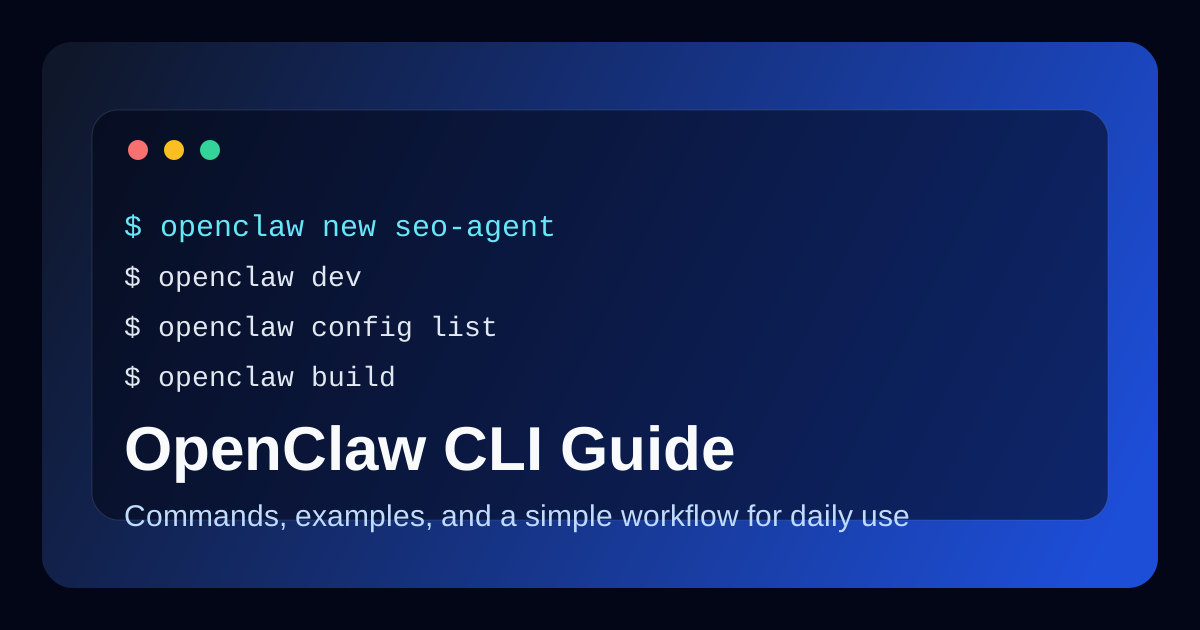
openclaw new research-assistant
cd research-assistant
This creates a new project with the following structure:
research-assistant/
├── agents/
│   └── default.yaml
├── skills/
├── tools/
├── config.yaml
└── README.md
Step 2: Configure Your Agent
Open agents/default.yaml and replace its contents with:
name: Research Assistant
description: An AI agent that helps research topics and answer questions

personality:
  friendly: true
  professional: true
  concise: true

capabilities:
  - web_search
  - summarization
  - question_answering

instructions: |
  You are a helpful research assistant. Your job is to:
  1. Answer user questions accurately
  2. Search the web when you need current information
  3. Provide clear, concise summaries
  4. Always cite your sources

memory:
  enabled: true
  max_messages: 10
Let's break down what each section does:
- name & description: Identifies your agent
- personality: Sets the tone and style of responses
- capabilities: Lists what the agent can do
- instructions: Core behavior guidelines
- memory: Enables conversation context
Step 3: Add Web Search Tool
Create a new file tools/web_search.yaml:
name: web_search
description: Search the web for information

parameters:
  query:
    type: string
    description: The search query
    required: true

implementation:
  type: api
  endpoint: https://api.search.example.com/search
  method: GET
  headers:
    Authorization: Bearer ${env.SEARCH_API_KEY}
Step 4: Test Your Agent
Start the development server:
openclaw dev
Open your browser to http://localhost:3000 and try chatting with your agent:
You: "What are the latest developments in AI?"
Agent: "I'll search for the latest AI developments for you..."
Step 5: Enhance Your Agent
Let's add more capabilities. Update agents/default.yaml:
name: Research Assistant
description: An AI agent that helps research topics and answer questions

personality:
  friendly: true
  professional: true
  concise: false  # Changed to allow longer responses

capabilities:
  - web_search
  - summarization
  - question_answering
  - note_taking  # Added new capability

instructions: |
  You are a helpful research assistant. Your job is to:
  1. Answer user questions accurately
  2. Search the web when you need current information
  3. Provide clear, detailed summaries
  4. Always cite your sources
  5. Offer to save important findings to notes

  When researching:
  - Break complex topics into smaller parts
  - Explain technical terms in simple language
  - Use examples to illustrate concepts

memory:
  enabled: true
  max_messages: 20  # Increased memory
Step 6: Add a Note-Taking Skill
Create skills/note_taking.yaml:
name: note_taking
description: Save research findings to notes

actions:
  save_note:
    description: Save a note with a title and content
    parameters:
      title:
        type: string
        required: true
      content:
        type: string
        required: true
    handler: |
      // Save note to file
      const fs = require('fs');
      const note = {
        title: params.title,
        content: params.content,
        created: new Date().toISOString()
      };
      fs.appendFileSync('notes.json', JSON.stringify(note) + '\n');
      return { success: true, message: 'Note saved!' };
Step 7: Advanced Configuration
Create config.yaml in your project root:
# Agent Configuration
agents:
  default:
    model: gpt-4
    temperature: 0.7
    max_tokens: 2000

# Tool Settings
tools:
  web_search:
    timeout: 10000
    max_results: 5

# Memory Settings
memory:
  type: persistent
  storage: ./memory

# Logging
logging:
  level: info
  file: ./logs/agent.log
Step 8: Testing Different Scenarios
Let's test your agent with various inputs:
Scenario 1: Simple Question
You: "What is machine learning?"
Expected: A clear, concise explanation
Scenario 2: Research Task
You: "Research the benefits of renewable energy"
Expected: Web search followed by a summary
Scenario 3: Save Findings
You: "Save this: Solar energy reduces carbon emissions by 50%"
Expected: Confirmation that the note was saved
Common Mistakes to Avoid
- Vague Instructions: Be specific about what your agent should do
- Too Many Capabilities: Start simple, add features gradually
- Ignoring Memory: Always enable memory for conversational agents
- No Error Handling: Add fallback responses for unknown queries
Best Practices
1. Clear Instructions
Good:
instructions: |
  You are a research assistant. When asked about a topic:
  1. First, check if you already know the answer
  2. If not, search the web
  3. Provide a 2-3 paragraph summary
  4. List 3-5 key points as bullet points
Bad:
instructions: Help users with research
2. Appropriate Personality
Match personality to use case:
- Professional: Business applications
- Friendly: Consumer apps
- Technical: Developer tools
- Casual: Entertainment
3. Memory Management
memory:
  enabled: true
  max_messages: 20  # Adjust based on context needs
  persistence: true  # Save between sessions
Troubleshooting
Agent Not Responding
Check:
- Is the server running? (
openclaw dev) - Are there syntax errors in your YAML files?
- Is the API key configured correctly?
Poor Responses
Try:
- Improving instructions with more examples
- Adjusting the temperature (lower = more focused, higher = more creative)
- Adding more context to the conversation
Memory Not Working
Verify:
memory:
  enabled: true
  max_messages: 10  # Must be > 0
FAQ
Q: How do I add more tools?
A: Create new files in the tools/ directory following the same pattern as web_search.yaml.
Q: Can I use different AI models?
A: Yes! Change the model field in config.yaml. Supported models include GPT-4, Claude, and local models.
Q: How do I deploy my agent?
A: Run openclaw build to create a production build, then deploy the dist/ folder to any static hosting service.
Q: Can I create multiple agents in one project?
A: Yes! Create additional YAML files in the agents/ directory.
Next Steps
Congratulations! You've built your first AI agent. Here's what to explore next:
- Add more tools: Calendar, email, database connections
- Create custom skills: Package reusable functionality
- Build multi-agent systems: Agents that work together
- Deploy to production: Share your agent with the world
Check out these resources:
Conclusion
Building AI agents with OpenClaw is straightforward once you understand the basics. You now have a foundation to create more complex and powerful agents. Remember:
- Start simple and iterate
- Test thoroughly with real users
- Document your agents' capabilities
- Keep learning and experimenting
Happy building!
OpenClaw Security & Deployment Brief
Get the weekly OpenClaw Security & Deployment Brief — malicious skill alerts, CVE breakdowns, cost optimization tips.