OpenClaw CLI Guide: Commands and Examples
Learn the most useful OpenClaw CLI commands, what they do, and how to use them in a real development workflow.
Introduction
If you want to work efficiently with OpenClaw, the command line is one of the fastest ways to create projects, run agents locally, inspect configuration, and prepare deployments.
This guide covers the most useful OpenClaw CLI commands for beginners and gives you a simple workflow you can reuse every day.

What Is the OpenClaw CLI?
The OpenClaw CLI is the command-line interface for managing OpenClaw projects from your terminal.
With the CLI, you can:
- create a new project
- start local development
- inspect configuration
- build a project for deployment
- speed up repetitive setup tasks
If you have not installed OpenClaw yet, start with How to Install OpenClaw Step by Step.
Why Use the CLI Instead of Doing Everything Manually?
You could create folders and config files by hand, but that is slower and more error-prone.
The CLI helps because it:
- keeps project setup consistent
- reduces manual mistakes
- makes local testing faster
- gives you a repeatable workflow for every new agent
For most developers, the CLI becomes the default way to work with OpenClaw after the first project.
Basic OpenClaw CLI Commands
Below are the commands most users need first.
openclaw --version
Use this to verify the installation:
openclaw --version
This is the first command you should run after installation or when debugging environment issues.
openclaw new
Use this command to create a new project:
openclaw new my-agent-project
cd my-agent-project
This is usually the fastest way to start a clean OpenClaw workspace.
openclaw dev
Use this command to run your project locally:
openclaw dev
This is your main development command. Run it whenever you want to test prompts, tools, and workflow behavior.
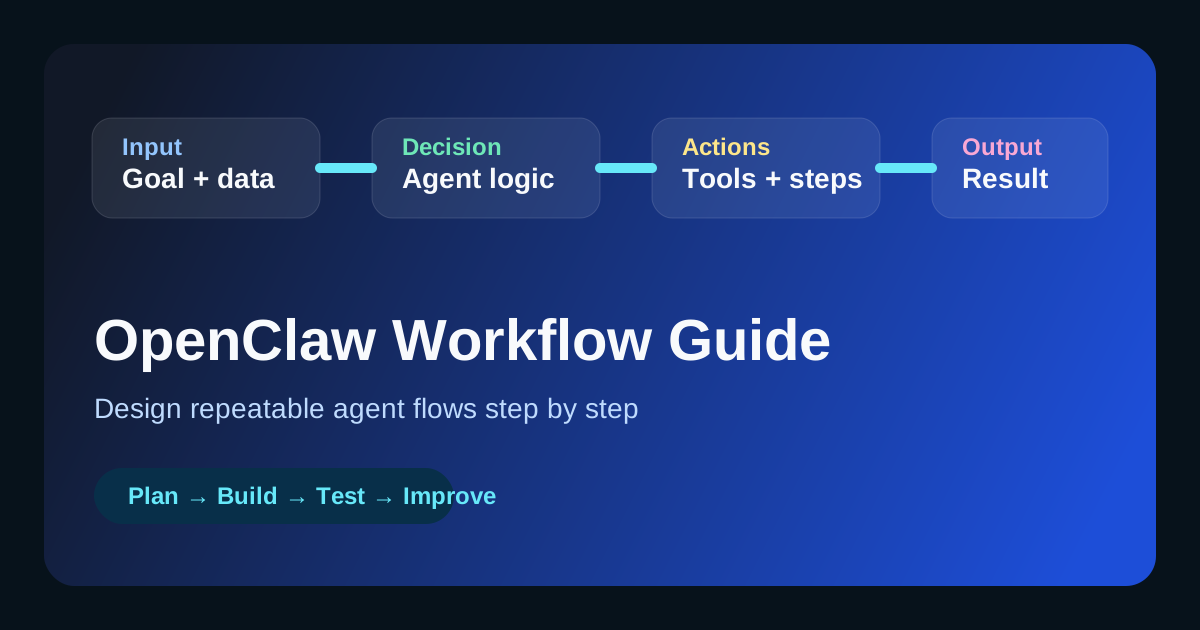
If you are building your first workflow, pair this with OpenClaw Workflow Guide (Step-by-Step).
openclaw config
Use this command family to inspect or update configuration:
openclaw config list
openclaw config set openai.api_key YOUR_API_KEY
This is useful when switching environments or checking whether a key or setting is missing.
openclaw build
Use this command when you want to prepare your project for deployment:
openclaw build
Think of this as the handoff point between local development and release preparation.
A Simple Daily CLI Workflow
For most projects, you can work with OpenClaw in this order:
- Check the installed version
- Create or open a project
- Start the local dev server
- Update configuration if needed
- Test the workflow
- Build when ready
Here is the basic sequence:
openclaw --version
openclaw new my-project
cd my-project
openclaw dev
openclaw config list
openclaw build
This is simple, but it is enough for many beginner and intermediate projects.
Example: Creating a New Project with the CLI
Let us walk through a realistic example.
Step 1: Create the Project
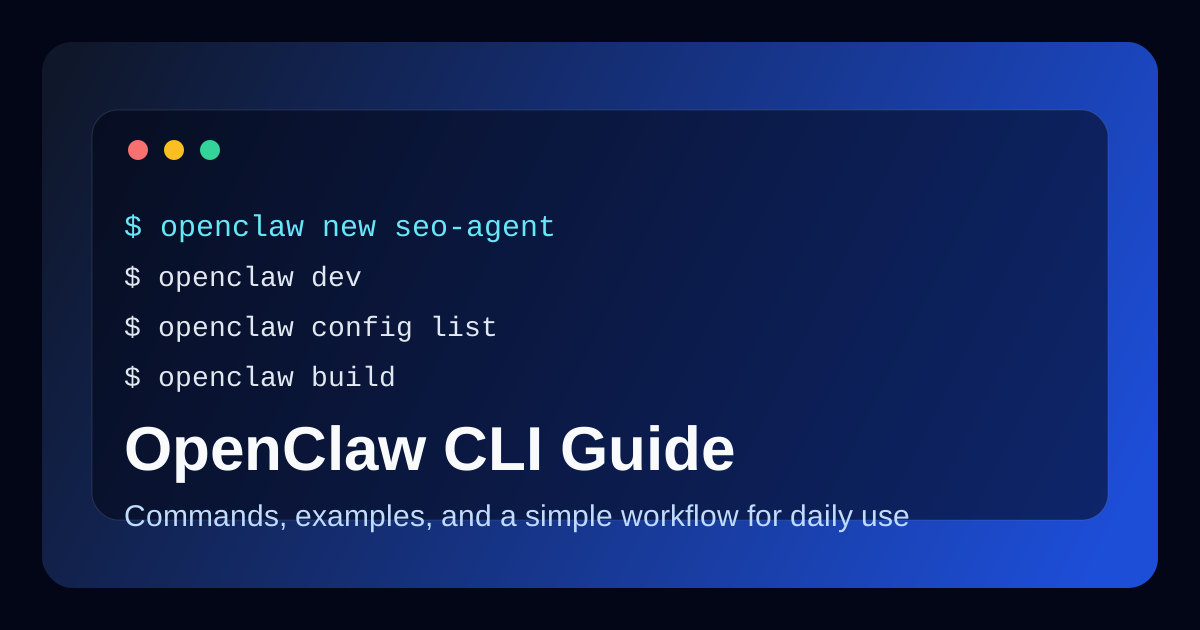
openclaw new seo-content-agent
cd seo-content-agent
Step 2: Check the Project Structure
You will usually see something like this:
seo-content-agent/
├── agents/
├── skills/
├── tools/
├── config.yaml
└── README.md
Step 3: Start Local Development
openclaw dev
Now you can test the project locally and refine your configuration.
If your goal is a content workflow, continue with How to Build an AI SEO Agent after setup.
Common CLI Use Cases
The CLI is useful beyond simple setup. Here are a few common use cases:
Project Bootstrapping
Create a repeatable starting point for each new agent or workflow.
Local Testing
Run the project quickly while you iterate on prompts, tools, and instructions.
Configuration Management
Inspect current settings and update values without searching through multiple files first.
Release Preparation
Build the project once the workflow is stable enough for deployment or sharing.
Common Mistakes
These issues come up often for beginners:
Running Commands Outside the Project Folder
Many commands expect the correct project directory.
Fix:
cd my-project
openclaw dev
Forgetting to Verify Installation
If the CLI is not available in your shell, run:
openclaw --version
If that fails, revisit How to Install OpenClaw Step by Step.
Editing Configuration Without Rechecking It
After updating settings, inspect them again:
openclaw config list
This helps catch simple mistakes early.
CLI Best Practices
Use these habits from the start:
- keep one project per folder
- verify the version before debugging deeper issues
- use the CLI for setup instead of manual folder creation
- test locally before building
- document the exact commands you use most often
The goal is not to memorize every possible command. The goal is to build a small reliable workflow.
Suggested Command Cheat Sheet
| Command | What it does | When to use it |
|---|---|---|
openclaw --version |
Checks the installed version | After install or during debugging |
openclaw new my-project |
Creates a new project | Starting fresh |
openclaw dev |
Runs the local dev environment | Daily development |
openclaw config list |
Shows current config | After setup changes |
openclaw config set ... |
Updates a config value | Adding keys or switching environments |
openclaw build |
Prepares the project for deployment | Before release |
FAQ
What is the first OpenClaw CLI command I should learn?
Start with openclaw --version, openclaw new, and openclaw dev. Those three commands cover installation checks, project creation, and local development.
Do I need to use the CLI for every OpenClaw project?
Not strictly, but it is usually the fastest and cleanest way to work, especially if you create multiple projects.
Is the CLI only for developers?
It is most useful for developers and technical users, but beginners can still learn a small set of commands quickly.
Conclusion
The OpenClaw CLI gives you a faster and more repeatable way to build projects than doing everything manually. Start with a small command set, use it consistently, and let that become your default development workflow.
Once you are comfortable with the basics, the next good step is learning configuration in more depth or building a complete workflow around your project.